Action items and owners from a meeting transcript
Autorec's built-in summary prompt already lists decisions and action items. Here is exactly what it asks for, two prompts you can paste to get owners, deadlines or a follow-up email, and why owners only show up when someone says a name.

A customer asked us a simple thing: how do I get a short summary with action points and who is responsible for what?
Most of that already works with the defaults, and the rest is a few lines in a text box.
What the built-in prompt already does
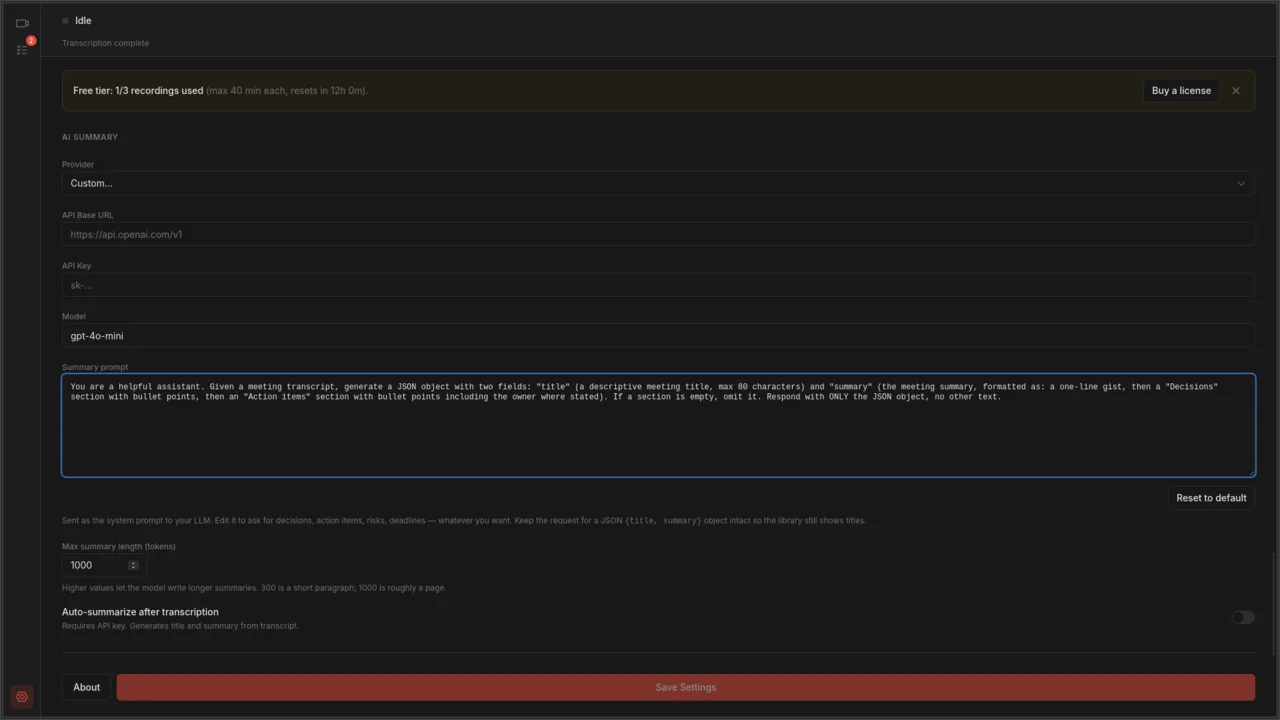
Open Settings and find the AI Summary section. The Summary prompt box shows the exact text Autorec sends to your model as the system prompt:
You are a helpful assistant. Given a meeting transcript, generate a JSON object with two fields: "title" (a descriptive meeting title, max 80 characters) and "summary" (the meeting summary, formatted as: a one-line gist, then a "Decisions" section with bullet points, then an "Action items" section with bullet points including the owner where stated). If a section is empty, omit it. Respond with ONLY the JSON object, no other text.So you get a one-line gist, a Decisions list, and an Action items list with the owner “where stated”. The title becomes the recording’s name in your library. If a meeting had no decisions, that section is left out instead of padded.
Summaries work with any OpenAI-compatible endpoint, hosted or on your own machine. If you haven’t set one up yet, the local LLM post and the OpenRouter setup post cover the two common routes.
Why owners are sometimes missing
Autorec transcribes with whisper.cpp. Whisper turns speech into text with timestamps, but it does not work out who is speaking, and Autorec does not add speaker labels on top. The transcript has no “Sarah:” or “Speaker 2:” at the start of a line.
The model only sees that text. It can name an owner when the words contain one:
- “Sarah, can you send the revised quote by Friday?” produces an owner (Sarah) and a deadline (Friday).
- “Someone should update the docs.” produces an action item with no owner, because there isn’t one in the text.
- “I’ll take that.” produces nothing useful, because the transcript doesn’t say who “I” is.
That is why the default says “where stated”. A prompt that demands an owner for every item pushes the model to guess, and a guessed owner is worse than a blank one.
The fix costs nothing and happens in the meeting. When you assign something, say the name and the date out loud:
“Okay, so Priya owns the migration plan, due next Wednesday.”
It feels stiff the first two times. After that it’s just how the meeting ends, and the people in the room get clearer assignments too.
Prompt one: action items first, as a table
This version puts the actions up front and asks for a table with owner and deadline columns. Where nobody was named, it writes “unassigned” so you can see the gaps.
You are a helpful assistant. Given a meeting transcript, generate a JSON object with two fields: "title" (a descriptive meeting title, max 80 characters) and "summary". Write the summary in Markdown, in this order: first an "Action items" section as a table with the columns Task, Owner, Deadline. Only use an owner or deadline that is stated in the transcript. If the transcript does not name one, write "unassigned" or "no date". Then a "Decisions" section with bullet points. Then an "Open questions" section with bullet points. Finish with a one-line gist. If a section is empty, omit it. Do not invent names, dates or tasks. Respond with ONLY the JSON object, no other text.The sentence “Only use an owner or deadline that is stated” matters. Without it, many models fill the table with plausible guesses.
Prompt two: a follow-up email
If the real goal is the message you send afterwards, ask for that directly.
You are a helpful assistant. Given a meeting transcript, generate a JSON object with two fields: "title" (a descriptive meeting title, max 80 characters) and "summary". The summary is a short follow-up email I can send to the attendees. Start with a two-sentence recap, then list the decisions, then list the action items as "Name: task (deadline)" using only names and dates that are said in the transcript. Close with one line asking people to reply if anything is wrong. Plain text, no Markdown headings. Respond with ONLY the JSON object, no other text.Read it before you send it. The model works from a machine transcript, and whisper sometimes mishears a name.
Keep the JSON wrapper
Both prompts keep the first half of the default: “generate a JSON object with two fields: title and summary” and “Respond with ONLY the JSON object”. Autorec expects that shape back, and the title is what the library shows. Autorec shows a hint under the box to keep the request for a JSON {title, summary} object intact. Edit what goes inside summary and leave the wrapper alone.
Two more details from how it works:
- Your edited prompt is sent as written. Autorec adds nothing to it. With the default prompt, Autorec appends a “write in this language” line when the app isn’t set to English. If you edit the prompt, add the language yourself, for example “Write the title and summary in German.”
- Reset to default is in the editor. It puts the built-in text back in the box, so you can’t lose the original by experimenting.
Click Save Settings at the bottom for the change to apply.
The max-tokens setting
Under the prompt there is a field called Max summary length (tokens). The default is 1000. The helper text next to it says 300 is a short paragraph and 1000 is roughly a page. Autorec accepts values from 100 to 2000 and clamps anything outside that.
This is the cap on how long the model’s answer can be. If the summary stops mid-sentence, or the JSON never closes and the summary fails, the cap is usually the reason. Raise it when:
- you use the table prompt on a meeting with many tasks
- you ask for the follow-up email plus decisions
- the call was long: the whole transcript reaches the model, so a two-hour meeting can produce more action items than 1000 tokens hold (2000 is the maximum)
- you run a model that writes long, wordy answers
Lower it if you want short gists and pay per token. Raising it doesn’t make summaries longer. The prompt does that. A higher cap only stops the model from being cut off.
Existing recordings
An edited prompt also works on past calls. Open a recording from the library and press Generate Summary in the video view. It runs the prompt as it is saved now against that recording’s transcript. The button is greyed out when there is no transcript yet, or when the endpoint needs an API key and none is set. Local servers don’t need one. If you have Auto-summarize after transcription switched on, new recordings are summarised as soon as the transcript is done.
So a sensible way to tune a prompt is to pick one real meeting, edit, save, press Generate Summary, read the result, and repeat. Three or four rounds is usually enough.

That screenshot uses a demo recording, so its transcript lines carry names. Yours will have timestamps and the words as spoken, and names only where someone said them.
Where the transcript goes
With a local model through Ollama or LM Studio, the transcript stays on your machine. With a hosted endpoint, the transcript text is sent to that provider when you summarise. You choose per provider, and it matters for client calls. The GDPR post and the OpenRouter privacy post go through the options.
The short version
- Settings, AI Summary: paste one of the prompts above and press Save Settings.
- Raise Max summary length (tokens) if the output gets cut off.
- Say names and dates out loud when you hand out work.
- Press Generate Summary on a recent recording and compare.
- Skim the result before it goes to anyone else.
If you pipe summaries into notes, the Notion and Obsidian post shows a template that fits the Markdown table.
Own your meeting recorder once
Local, private meeting recording for a one-time fee. No monthly bill, no assistant joining your calls.
See pricingRelated articles
More on local recording, transcription, and the automation around them.

Getting meeting notes into Notion or Obsidian without copy-paste
Meetings should turn into notes you can find later, not files scattered across three apps. Here's a local-first capture path for Notion, Obsidian, and similar tools.

Transcribing meetings locally with Whisper
A quiet, dependable way to get transcripts from your meetings without uploading them anywhere. Local recording, local Whisper, optional AI on top if you want it.

An automated meeting transcription pipeline that won't bite you
When you're processing dozens of recordings a week, the bottleneck is file handling, not AI. Here's a batch transcription workflow built around that.