How to record Proton Meet calls locally
Autorec detects Proton Meet calls by itself and saves them to a folder on your disk. It transcribes on-device and can summarise through a local or EU endpoint. No bot joins the call.
People pick Proton Meet because they don’t want a call passing through a company that can read it. Then they want notes from it, and most meeting recorders ask them to give that up again: a bot joins the call, or the audio goes to someone’s cloud for transcription.
You can have both. Autorec records the call on your own machine, transcribes it there, and only sends text anywhere if you set that up.
What Proton Meet is, and what a local recording changes
Proton Meet is a video conferencing service from the makers of Proton Mail. According to Proton’s own page, it runs in the browser, has desktop apps for macOS, Windows and Linux, and has mobile apps for iOS and Android. Proton says calls, screen shares and chat messages are end-to-end encrypted using the Messaging Layer Security (MLS) protocol, and that Proton cannot access the contents of your meetings.
That claim is about the call in transit and on Proton’s servers. It does not cover what happens on your own computer. A recording made on your machine is a copy of the call, and you are now the one who has to look after it. Store it somewhere you trust, encrypt the disk if the call was sensitive, and delete it when you’re done with it.
Tell people you are recording
Do this every time, at the start of the call or in the invite. Many places require everyone’s consent, and your employer or client may have rules on top. Encryption changes none of that, and a private call is the last place anyone expects a silent recording.
Since no bot joins, nothing in the participant list shows that a recording is running. So you have to say it.
How Autorec detects Proton Meet
Since version 0.12, Proton Meet is on the default watcher list. There are two watchers, because browser and desktop behave differently.
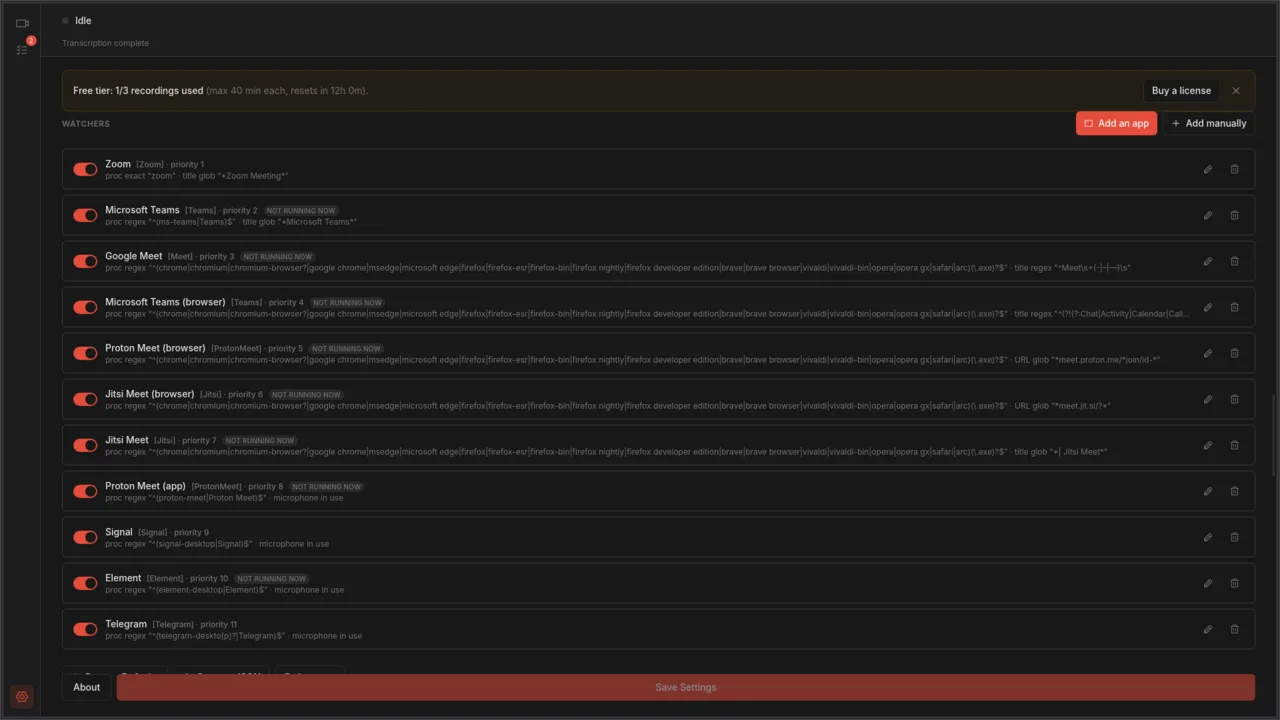
In the browser. The Proton Meet web app uses the same tab title for every page, “Proton Meet”, so the title can’t tell Autorec whether you are in a call. The address can. A watcher called “Proton Meet (browser)” looks at the URL of the tab in Chrome, Chromium, Edge, Firefox, Brave, Vivaldi, Opera, Safari or Arc, and matches addresses that contain meet.proton.me/ followed by a join/id- meeting path. The idle dashboard and the pre-join page don’t match, so Autorec doesn’t record before you are in the call.
In the desktop app. The Proton Meet desktop app keeps one window title whether it is idle or in a call. The “Proton Meet (app)” watcher therefore watches the microphone instead: recording starts when the app opens the mic and stops when it lets go. On macOS this needs 14.2 or newer. Older versions keep the other watchers and log a note.
A customer who tried Autorec on a Proton Meet call wrote back that it recorded fine. One caveat on the desktop watcher: it looks for a process called proton-meet or Proton Meet, and that name was not tested against an installed copy of the app. If it never triggers for you, see step 4 below.
Set it up
- Install Autorec and open it. The Proton Meet watchers are already enabled, so there is nothing to switch on.
- Check where files go. Open Settings and look at Output Directory. The default is a
Videos/autorecfolder in your home directory (on Windows, a folder namedautorecinside your Videos folder). Change it if you want recordings on an encrypted volume. - Look at the Watchers section of Settings. You should see “Proton Meet (browser)” and “Proton Meet (app)”, both enabled. A “not running now” badge just means that app or browser isn’t open at the moment.
- If the desktop app isn’t picked up, use Add an app in the same section, choose the Proton Meet app and pick the microphone option. That creates a watcher for the exact process on your machine.
- Join a call. Autorec starts when the meeting starts and stops a short while after it ends. You can also leave the window alone and let it run.
A call you put on hold may release the microphone. For the desktop app, that can end a recording early, and the rest of the call becomes a new file.
Where the files end up
Recordings land in the output folder as normal files, and recording itself uploads nothing. Open them in any player, copy them to an encrypted archive, or delete them.
Transcribe on your machine
Autorec transcribes finished recordings with whisper.cpp, which runs on your own hardware, so the audio never goes to a transcription service. It downloads a speech model the first time and works offline after that. The Whisper workflow post covers model sizes and speed.

Summarise without handing the transcript to a stranger
A transcript is searchable text of a private call, so treat it as sensitive as the call itself. Summaries are optional and stay off until you add a provider.
In Settings, the AI Summary section takes a provider, an API Base URL, an API Key (not needed for local servers) and a Model. Any OpenAI-compatible endpoint works, so you choose where the text goes:
- On your own machine. Point it at Ollama or LM Studio on localhost. The transcript never leaves the computer. The local LLM guide walks through it.
- An EU-hosted endpoint. If a local model is too slow for you, a provider with EU hosting and a data processing agreement is the next best option. The GDPR summaries post covers what to check.
If you turn on Auto-summarize after transcription, summaries are generated as soon as a transcript is ready. Leave it off if you’d rather decide per call.
What you give up
- Participants don’t see a recorder, so consent is on you.
- The file is unencrypted on your disk unless you encrypt the disk.
- Local models are slower and less polished than the large hosted ones.
- Autorec records what appears on your screen and plays through your audio. It has no access to anything on Proton’s side.
Next steps
- Getting started is the install walkthrough.
- The no-bot recorder post explains why no participant joins the call.
Own your meeting recorder once
Local, private meeting recording for a one-time fee. No monthly bill, no assistant joining your calls.
See pricingRelated articles
More on local recording, transcription, and the automation around them.

Meeting summaries with a local LLM: Ollama and LM Studio
Run the summary model on your own machine too. Set up Ollama or LM Studio, point Autorec at it, and the recording, the transcript and the summary never leave your computer.

GDPR and AI meeting summaries: which endpoint to use
Autorec sends a transcript to the AI provider you choose, and nothing else. Here is what that means under GDPR, how Mistral, Scaleway, IONOS, OpenAI and Anthropic compare, and when a local model is the better answer.
I don't want a bot in my meetings
Most meeting note-takers join your call as a third participant and ship the audio to the cloud. Here's why that bothers people, and what a no-bot recorder does instead.